
Getting a new Mac is always exciting, but the first few hours are usually spent setting things up just the way you like them. Here’s a collection of my favorite customizations, terminal tweaks, and productivity hacks that I always apply on a fresh macOS installation.
Personalizing a new macOS developer setup
A quick note before we start: many tweaks below use defaults write, which edits the preference files apps read on launch. They’re safe and reversible. To undo any of them, run the same command with defaults delete and the same domain and key (for example defaults delete com.apple.dock autohide-delay), then restart the affected app. To see a setting’s current value, use defaults read with the same domain and key.
First Things First: Developer Tools
Install Apple’s command line tools (Git, clang, make, and friends). You can skip this if you’re installing the full Xcode, which includes them:
xcode-select --install
Then install Homebrew, the package manager most Mac developers use. Copy the install command from the Homebrew website rather than from a blog post, so you always get the current version. On Apple silicon Macs, Homebrew installs into /opt/homebrew, and the installer prints two commands at the end to add it to your PATH. Run them, or brew won’t be found in new terminal windows.
💡 Tip: Homebrew can save and restore your whole setup. On your old Mac:
brew bundle dump --file=~/Brewfile
This writes every formula, cask (GUI app), and Mac App Store app you have installed into a Brewfile. On the new Mac, copy the file over and run:
brew bundle --file=~/Brewfile
Keep the Brewfile in a Git repository with your dotfiles, and setting up the next Mac becomes a single command.
Personalizing the Dock
The Dock is where your most-used apps live, but sometimes you want to create a little breathing room between groups of apps. That’s where empty spacer tiles come in.
To add one:
defaults write com.apple.dock persistent-apps -array-add '{"tile-type"="spacer-tile";}'; killall Dock
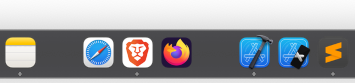
The macOS Dock with spacer tiles
Each time you run the command, it adds a blank space at the end of the apps section of your Dock. Drag the spacers to where you want them, just like app icons.
- Use
small-spacer-tileinstead ofspacer-tilefor a half-width gap. - Use
persistent-othersinstead ofpersistent-appsto add a spacer to the right side of the Dock, next to the Downloads folder and the Trash. - To remove a spacer, drag it out of the Dock until “Remove” appears, then let go.
If you hide the Dock, you can also get rid of the short delay before it slides in:
defaults write com.apple.dock autohide-delay -float 0; killall Dock
Preventing Sleep During Long Tasks
Sometimes you need your Mac awake for hours, like when running long builds, downloads, or data migrations. The simplest approach:
caffeinate -dis
caffeinateuses a single dash (-) followed by one or more flags.- The flags can be combined, so
-disis equivalent to-d -i -s.
Here’s what each flag does:
-d→ Prevent the display from sleeping-i→ Prevent the system from idle sleeping-s→ Prevent the system from sleeping at all, even if you close the lid, but only while plugged into power-u→ Declare that the user is active, which turns the display on if it’s off
You’ll often see caffeinate -disu recommended, but -u doesn’t add much here. Without a timeout, its assertion only lasts 5 seconds, so it just wakes the display once. -d is what keeps the display on.
⚡ caffeinate --disu won’t work. caffeinate doesn’t support GNU-style double-dash options and fails with illegal option -- -.
As long as the caffeinate process runs, your Mac stays awake. Press Ctrl+C to stop it.
💡 Tip: Instead of running it forever, you can tie caffeinate to something with a natural end:
caffeinate -i xcodebuild        # stay awake while this command runs
caffeinate -i -t 3600           # stay awake for one hour (in seconds)
caffeinate -i -w 12345          # stay awake until process 12345 exits
When the command finishes, the timer runs out, or the process exits, your Mac goes back to its normal sleep behavior. The -w form is handy when you’ve already started a long job and forgot to wrap it: find its process ID with pgrep or Activity Monitor.
You can see what’s currently keeping your Mac awake with:
pmset -g assertions
Terminal Tweaks
Out of the box, macOS Terminal is functional, but a little bland. A few tweaks make it a more comfortable workspace.
Check your shell:
echo $SHELL
Since macOS Catalina, new user accounts default to Zsh (/bin/zsh). $SHELL shows your login shell, so if you’ve switched to a different one, this tells you what new terminal windows will start with. To customize your prompt, add this to ~/.zshrc:
PROMPT="%n %1~ %# "
%n→ your username%1~→ the current directory, with your home folder shown as~%#→%for a normal user,#when running as root
PROMPT and PS1 are the same variable in Zsh, so you’ll see both in examples online.
Reload with:
source ~/.zshrc
Pair it with a nice terminal theme (Solarized, Dracula, or Catppuccin are great choices), and you’ll have a much more pleasant developer experience.
💡 Extra ideas:
- Install iTerm2 for split panes, better search, and more shortcuts.
- Add
zsh-autosuggestionsandzsh-syntax-highlightingfor a smoother typing flow. Installing them withbrew installisn’t enough on its own: Homebrew prints asource ...line for each one, which you need to add to your~/.zshrc. Keepzsh-syntax-highlightingas the last line sourced, as its README recommends.
Use Touch ID for sudo
Typing your password for every sudo gets old quickly. Since macOS Sonoma, you can enable Touch ID in a file that survives system updates:
sed "s/^#auth/auth/" /etc/pam.d/sudo_local.template | sudo tee /etc/pam.d/sudo_local
This copies Apple’s template and uncomments its single pam_tid.so line. Open a new terminal window, and sudo will ask for your fingerprint. (On older versions of macOS, people edited /etc/pam.d/sudo directly, but updates overwrite that file.) This doesn’t work over SSH or inside tmux without an extra helper, and falls back to your password in those cases.
Making Typing Snappier
If you type fast, macOS’s default key repeat rates feel sluggish. System Settings → Keyboard has sliders for both, but they stop at fairly conservative values. You can go further from the terminal:
defaults write -g InitialKeyRepeat -int 15
defaults write -g KeyRepeat -int 2
InitialKeyRepeatis how long you hold a key before it starts repeating.KeyRepeatis the interval between repeated characters.
Both are measured in units of about 15 milliseconds, so lower numbers are faster. 15 and 2 are the fastest values the System Settings sliders allow, and they’re a good place to start. Many people go lower (10 and 1 are popular), but at those values it becomes easy to type a character twice by accident, including in your password on the login screen. Go down gradually and stop when it feels right.
Log out and back in for the changes to take effect.
And if you hate the popup menu that appears when holding a key, instead of just repeating it, disable it:
defaults write -g ApplePressAndHoldEnabled -bool false
Quit and reopen apps for this to take effect.
💡 Tip: If you regularly type in multiple languages, you may prefer keeping the popup enabled, since it helps you access accented characters quickly.
Finder Tweaks
Finder can be friendlier with a few quick adjustments. Start by enabling the status bar (bottom of Finder windows), so you can always see the number of items and available disk space:
- View > Show Status Bar (⌘/)
I also recommend enabling the path bar, so you can see exactly where you are in the filesystem hierarchy. You can double-click any folder in it to jump there:
- View > Show Path Bar (⌥⌘P)
A few more settings I always change:
# Always show file extensions
defaults write NSGlobalDomain AppleShowAllExtensions -bool true

# Search the current folder by default, instead of the whole Mac
defaults write com.apple.finder FXDefaultSearchScope -string "SCcf"

killall Finder
You can also set both of these in Finder > Settings > Advanced.
To toggle hidden files (like .gitignore or .zshrc) in any Finder window or Open dialog, press ⇧⌘. (Shift-Command-Period).
💡 Extra ideas:
- Enable View > Show Tab Bar (⇧⌘T) to work with multiple Finder tabs like in a browser.
- Use View > As Columns for a fast, hierarchical view when navigating deep folders.
- Add common folders to the sidebar for one-click access, by dragging them in or pressing ⌃⌘T with a folder selected.
Switch between views with:
- ⌘1 → Icon View
- ⌘2 → List View
- ⌘3 → Column View
- ⌘4 → Gallery View
Note: In Column View, double-click the divider to the right of a column to resize it to fit its longest name. Hold Option while double-clicking to resize every column at once.
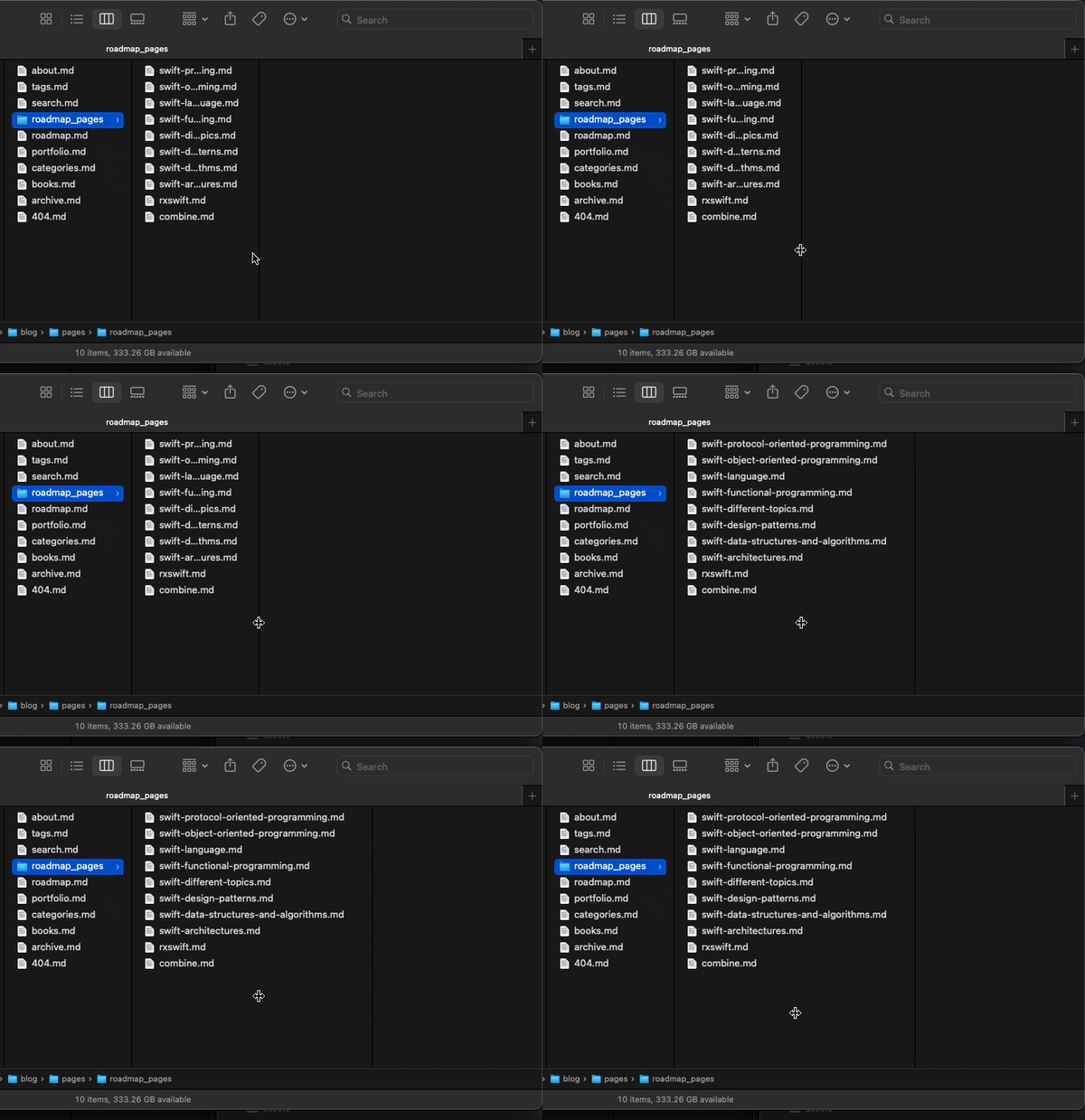
Auto-resizing a Finder column
Screenshots
By default, screenshots land on your Desktop, which quickly gets messy. Press ⇧⌘5, open Options, and pick another folder under Save to. Or do it from the terminal:
mkdir -p ~/Pictures/Screenshots
defaults write com.apple.screencapture location ~/Pictures/Screenshots
The folder must exist first, so don’t skip the mkdir.
Git Worktrees for Clean Development
When working with multiple Git branches, I prefer using worktrees instead of constantly switching branches back and forth. A worktree is an extra working directory attached to the same repository, so you can have two branches checked out side by side, each with its own files and build products.
Example:
git worktree add ../wt/app_name/feature_two feature_two
This creates a new directory with the existing branch feature_two checked out, perfect for parallel development without stashing or committing half-finished work in your main folder. The worktrees share one repository, so commits, branches, and fetches made in one are visible in all of them.
To create a new branch at the same time, add -b:
git worktree add -b feature_three ../wt/app_name/feature_three
💡 Extra ideas:
- Use
git worktree listto see all your active worktrees. - Use
git worktree remove path/to/worktreeto clean up old ones. Git refuses if the worktree has uncommitted changes, which protects you from losing work. - If you deleted a worktree folder by hand, run
git worktree pruneto clear Git’s leftover record of it. - Git won’t let you check out the same branch in two worktrees at once, so if
worktree addfails, check whether that branch is already open somewhere else. - Keep worktrees in one place, like
~/Projects/wt/, so they’re easy to find and clean up.
Smarter Window Management with Rectangle
Since macOS Sequoia, macOS has built-in window tiling: drag a window to the edge of the screen, or use Window > Move & Resize and its shortcuts (like Fn-Control-arrow keys). If you want more layouts and fully customizable shortcuts, Rectangle is the go-to tool. It’s free and open source, and it lets you move and resize windows quickly from the keyboard.
💡 Why it’s great:
- Snap windows to halves, thirds, quarters, or sixths of the screen.
- Move windows between displays instantly.
- Pick your own shortcuts for every action.
If you have a keyboard with a numeric keypad, you can bind Rectangle’s shortcuts to keypad keys so the keypad works like a map of your screen. Here’s one layout:
- Keypad 7 / 8 / 9 → Top left, top center, top right
- Keypad 4 / 5 / 6 → Left third, center third, right third
- Keypad 1 / 2 / 3 → Bottom left, bottom center, bottom right
Or a simpler one built from halves and corners:
- Keypad 8 → Top half
- Keypad 2 → Bottom half
- Keypad 4 → Left half
- Keypad 6 → Right half
- Keypad 7 / 9 / 1 / 3 → Corners (quarters)
- Keypad 5 → Maximize
This way, you can manage windows with one hand, without dragging them around. Laptop keyboards don’t have a keypad, so on a MacBook stick with Rectangle’s default shortcuts (Control-Option plus arrow keys and letters).
Bonus: Small Things for Xcode Users
Show how long each build took, right in Xcode’s activity area:
defaults write com.apple.dt.Xcode ShowBuildOperationDuration -bool YES
Restart Xcode afterwards.
And if you work on iOS apps, xcrun simctl lets you manage simulators from the terminal: xcrun simctl list devices shows them all, and xcrun simctl delete unavailable removes simulators for runtimes you no longer have installed, which can free a surprising amount of disk space.
Wrapping Up
Most of this takes a few minutes, but it adds up to a Mac that feels like yours. The trick to never doing it by hand again: put the commands from this post in a shell script, keep it next to your Brewfile and dotfiles in a Git repository, and run it on every new machine.